Set up your Lucid account, then confirm your assigned access method with ZEVO before pickup.
A Lucid account is required to reserve a Lucid through ZEVO. Use the email registered to your Lucid account when ZEVO asks you to link it.
Account not found: check that you completed Lucid registration and entered the Lucid account email correctly. Contact ZEVO Support if it still cannot be recognized.
<aside> 📌
The actual pickup flow has not been tested. Do not use general Lucid key instructions as confirmed ZEVO pickup steps. Contact ZEVO Support before pickup to confirm how you will unlock and drive your assigned vehicle.
</aside>
| Access detail | Status |
|---|---|
| First unlock method and when access begins | Pending actual pickup test |
| Assigned fob, key card, or backup device | Pending confirmation |
| Whether a PIN is required and how it is supplied | Pending actual pickup test |
| Renter Mobile Key availability and pairing | Pending actual pickup test |
| Recovery when the phone or assigned key does not work | Pending actual pickup test |
Step-by-step unlock, key-card, and Mobile Key procedures will be added after the actual ZEVO pickup flow is confirmed.
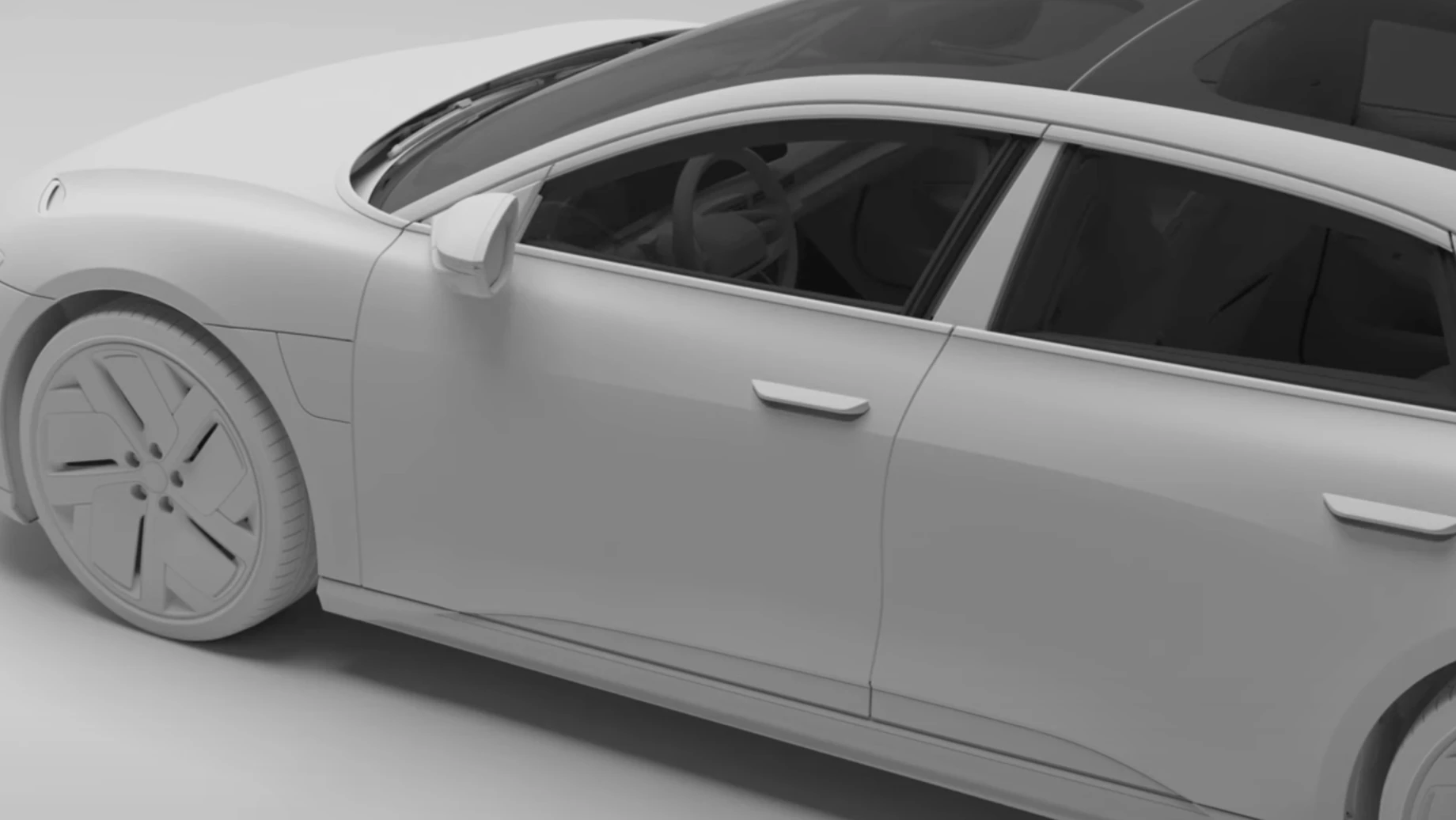
These Lucid illustrations identify the exterior handles and key-card sensor. They do not confirm the key or access permissions included with your booking.
Exterior door handles in the extended position
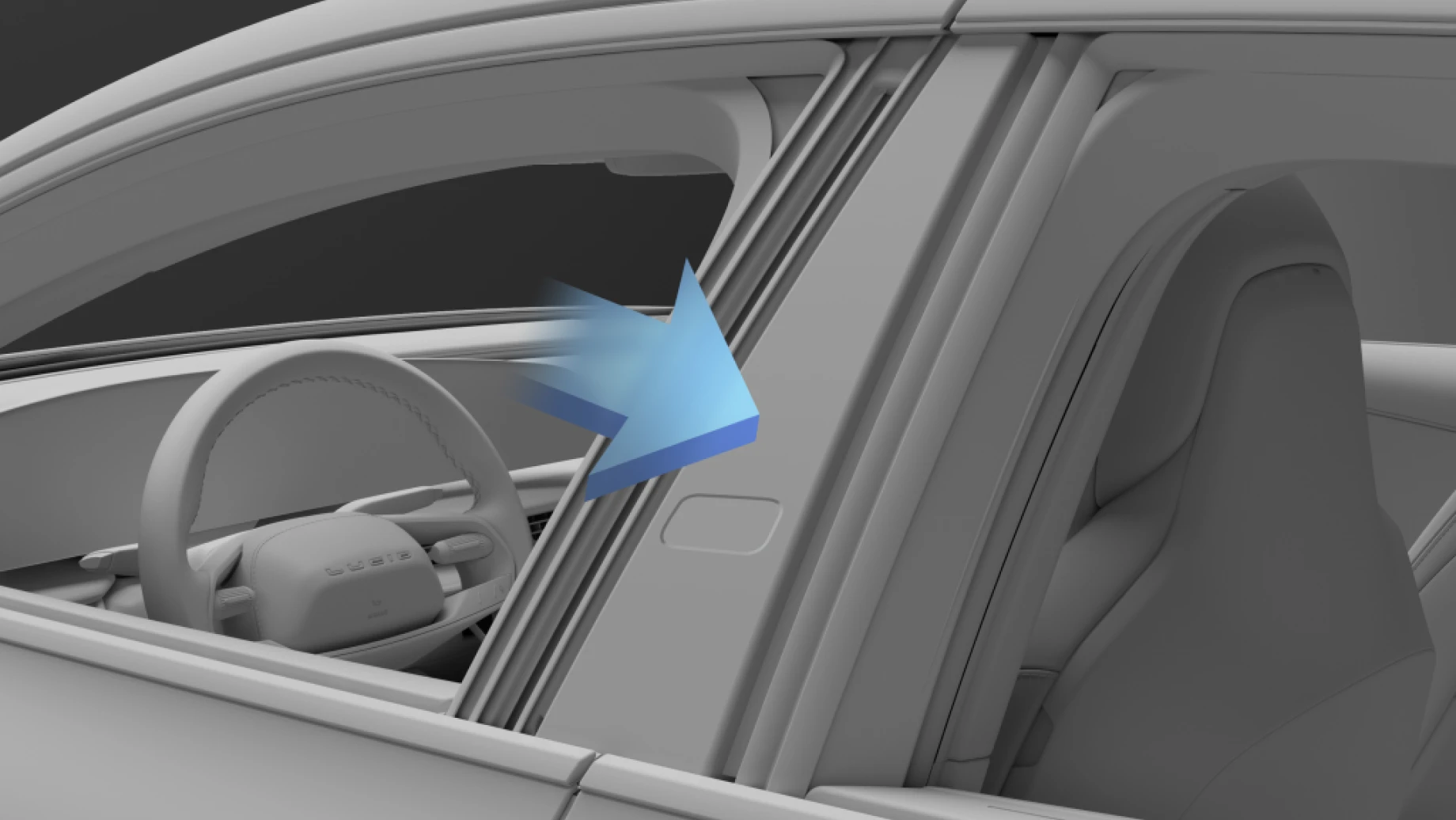
Key-card sensor location on the driver-side center pillar
If your vehicle is missing from the app, you cannot unlock it, or you do not have a required key or PIN, contact ZEVO Support with your booking reference and exact message. Do not reset the owner’s profile or remove other keys.
Bluetooth audio and Mobile Key are separate functions. Successful music pairing does not confirm driving access.
Back to Lucid Air Driving Guide.